Roles & Permissions
Roles determine what users can see and do inside the Palera platform. This ensures secure access control and operational efficiency.There are default roles within the organization and client, custom roles with custom names and permissions can also be created and assigned to users.
Written By Thando Nomvungu
Last updated 7 months ago
An organization represents the BPO or contact center environment managing multiple clients. Users at this level, including agents and supervisors, handle conversations across client accounts. A client represents an individual business or entity supported by the organization. Client users operate within their own environment and have access to more detailed, account-specific information and extended functionality, enabling them to handle specialized queries when conversations are escalated.
Role types include:
Organization:
Super Admin – Can monitor agents, view reports, manage conversations
Agent – Responds to chats and handles customer queries
The table below lists the permissions that are granted to users using the platform’s Super Admin and Agent roles.
Client:
Client Admin – Has admin level access to the client
Client User – Can only reply to conversations and cannot access client details
Client Agent – Can only reply to conversations and cannot access client details
The table below lists the permissions that are granted to teammates using the Client Admin, Client Agent, and Client User roles.
Assigning or Editing Roles
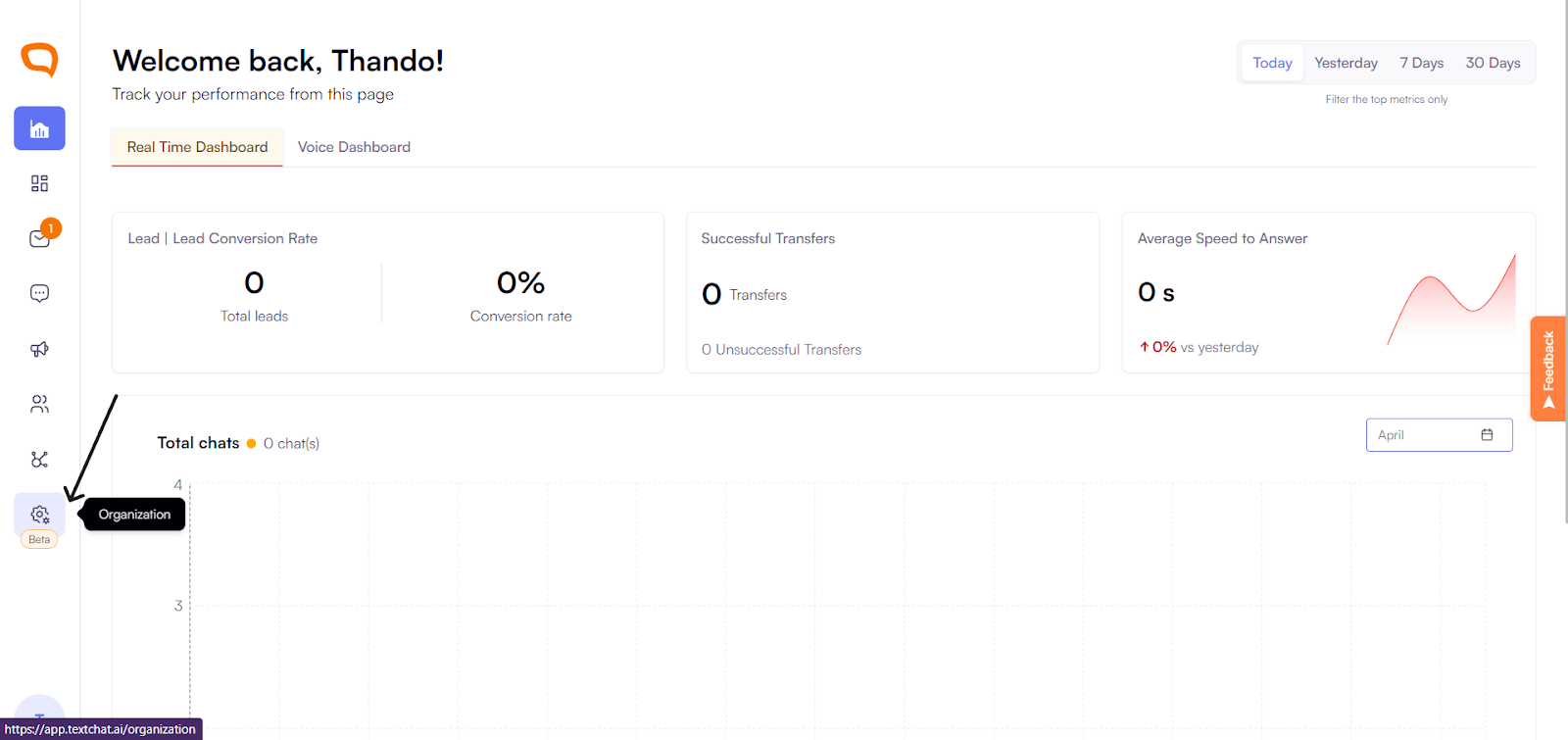
Go to Organization.
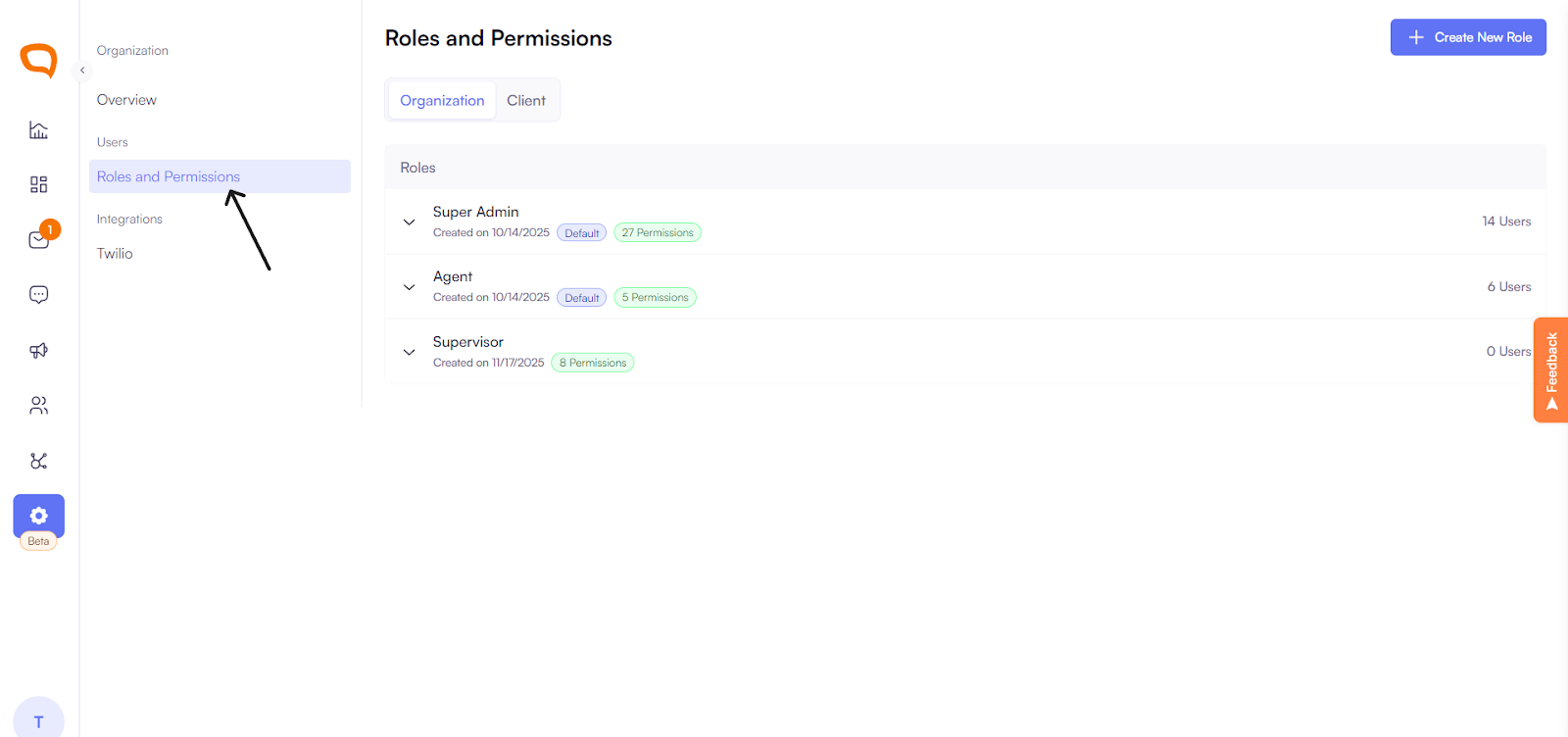
Select Roles and Permissions.
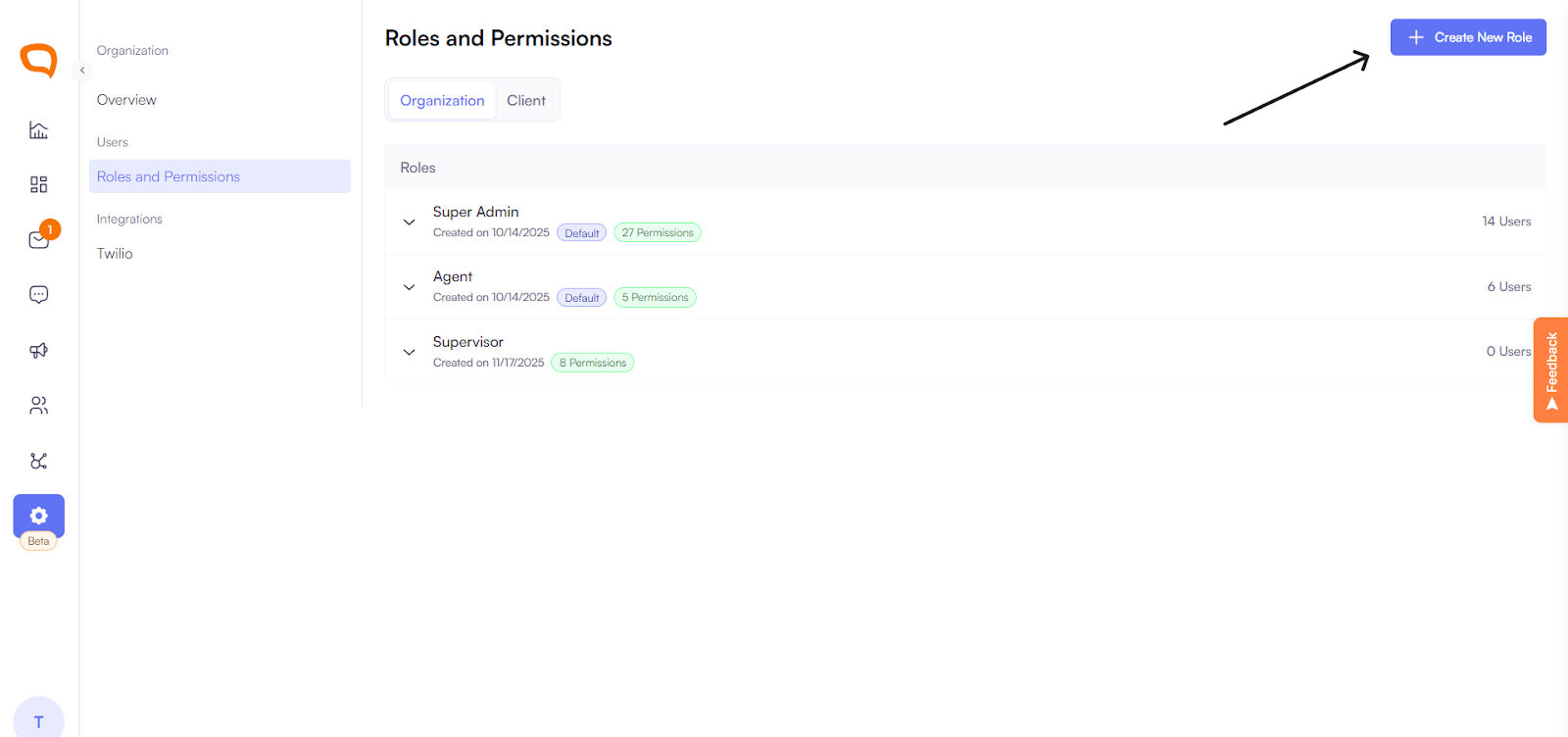
Choose the default ‘Agent’ or ‘Super Admin’ or click ‘create a new role’ to create a fully customized role.
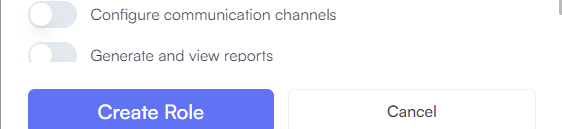
Select permissions that custom role has
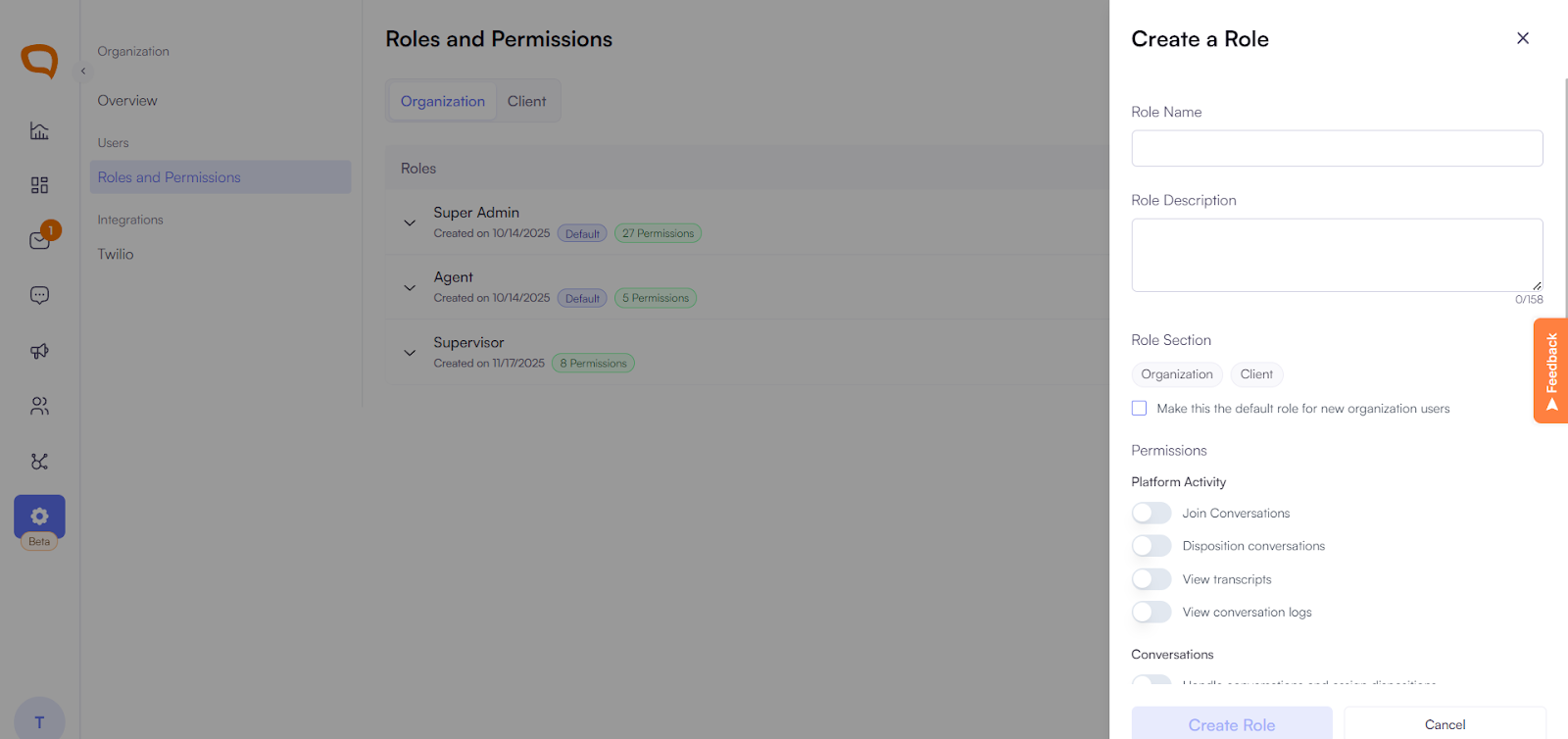
Save changes and assign the role to a new user or select it when editing an existing user’s role.
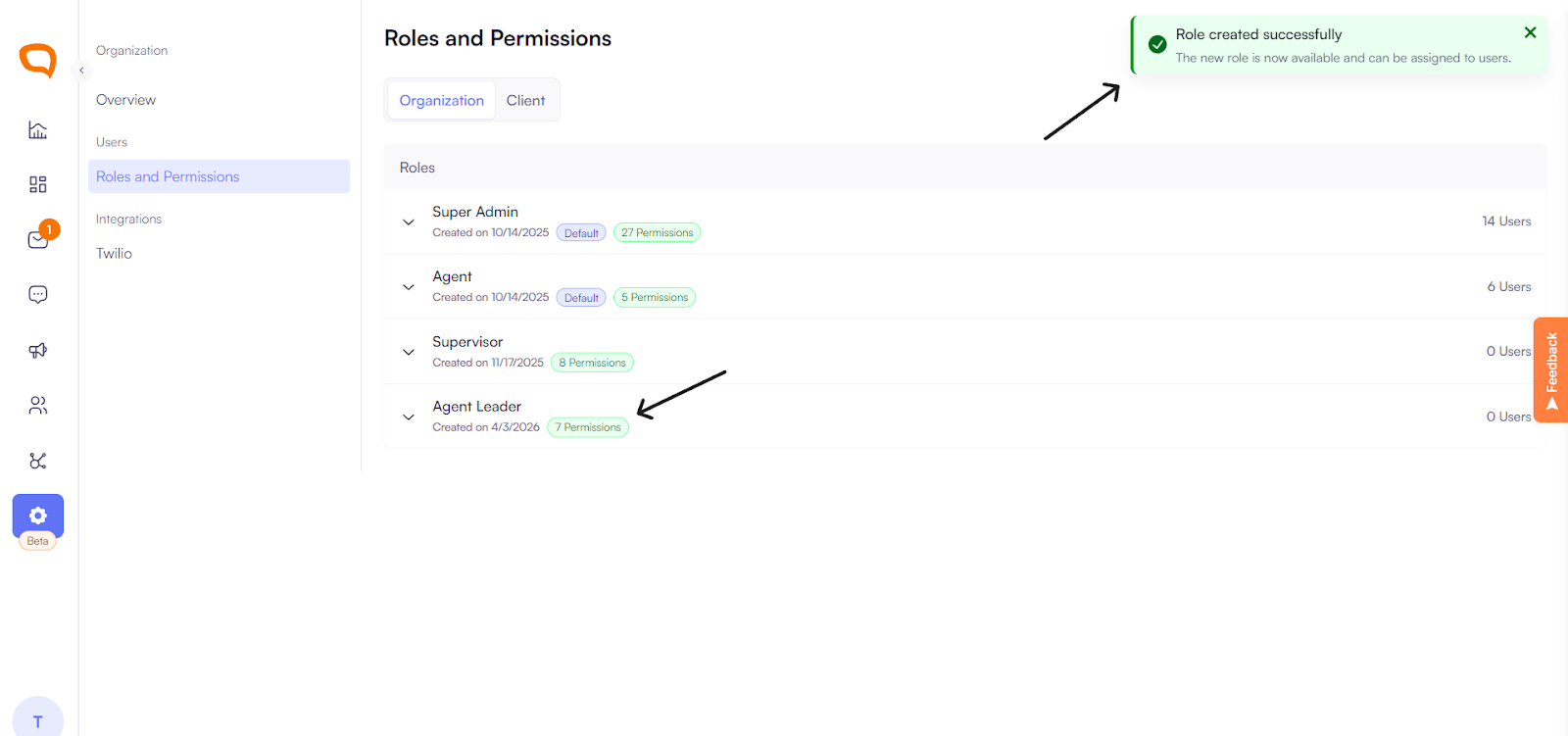
Changes take effect immediately.
Security Tip
Only assign Administrator roles to trusted users who are responsible for system-level changes.
Was this helpful?
Still need help? Share an idea